Kling 3.0
Multi Shot AI Video Generator
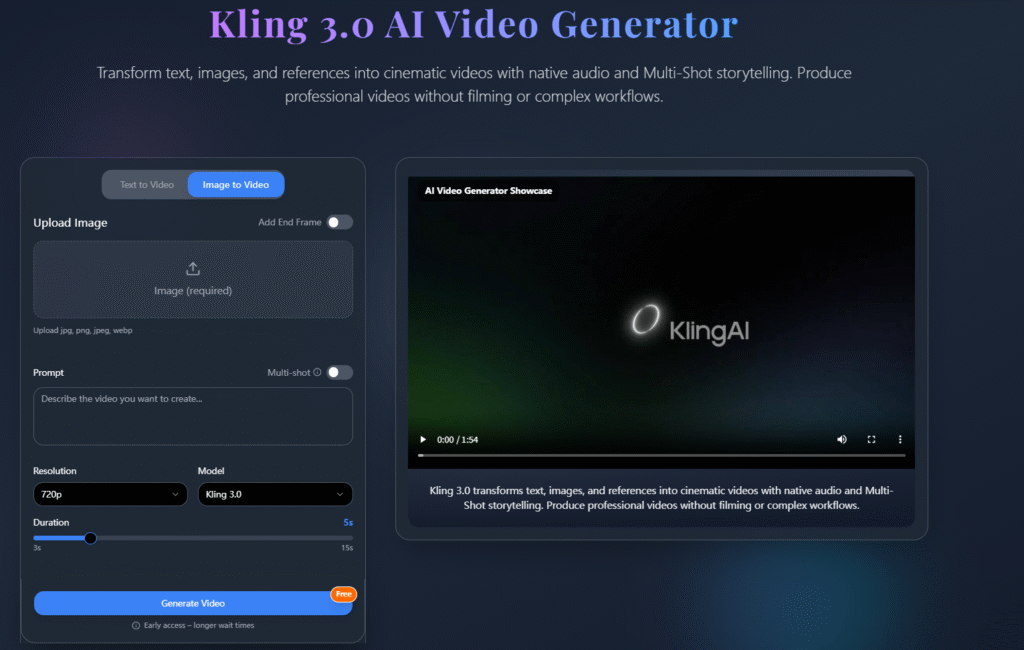
Kling 3.0 is an AI video generator for creating AI multi-shot video from text, images, videos, and audio references. It can turn a single idea into a sequence of connected scenes, allowing creators to build videos with different shots, camera angles, movements, transitions, characters, and environments while keeping the appearance of characters consistent across different shots and scenes.
The platform supports text-to-video and image-to-video generation, along with multi-image and video references for controlling characters, objects, and scenes. Its native audio capabilities add dialogue, character voices, sound effects, and lip synchronization to generated videos. Users can also define individual shots and control elements such as shot duration, camera movement, scene composition, and narrative flow for more structured multi-scene video generation and ai video sequence generation.
Kling 3.0 can be used to create cinematic stories, short films, advertisements, product videos, social media content, promotional videos, and other visual content. Its multi-shot workflow is designed for projects that require several connected scenes rather than a single standalone AI-generated clip, making it suitable for multi shot ai video generator workflows.
Key Highlights
- Multi-Shot Video Creation: Generate connected sequences with multiple shots, camera angles, transitions, and scenes.
- Character Consistency: Maintain consistent character appearances across different shots and scenes.
- Text-to-Video Generation: Create videos from detailed text prompts describing scenes, actions, and visual styles.
- Image-to-Video Generation: Turn images into videos while controlling scenes, characters, and visual elements.
- Native Audio Generation: Add dialogue, character voices, sound effects, and lip synchronization to generated videos.
- Shot-Level Controls: Define shot duration, camera movements, scene composition, and narrative flow.
Frequently Asked Questions (FAQs)
1. How do I keep the same character in every shot?
You can upload photos or video clips of your character as references. As a multi shot AI video generator, Kling 3.0 uses these references to guide the character’s appearance across different shots and scenes, helping maintain consistent facial features, clothing, and other visual details without requiring you to describe the character from scratch for every shot.
2. How do I make one shot flow right into the next?
Kling 3.0 lets you create multiple shots as part of the same video sequence. You can define what happens in each shot, along with details such as shot duration, camera movement, transitions, and narrative flow, giving you more control over how one scene leads into the next.
3. How do I keep the same location or setting across shots?
You can provide reference images or videos of the environment, objects, and other important visual elements. As a multi shot AI video generator, Kling 3.0 uses these references to guide subsequent shots, helping maintain the same setting and key details even when the camera angle, composition, or scene changes.
4. How do I keep the whole video looking consistent?
Kling 3.0 supports image and video references alongside shot-level controls for camera movement, composition, transitions, and timing. Using consistent references and controls across the sequence helps maintain a connected visual direction across different shots rather than generating each clip as an unrelated video.