Export to Figma

Bring Live Websites into Figma as Editable Designs

  • Export to Figma Chrome extension for exporting websites to Figma

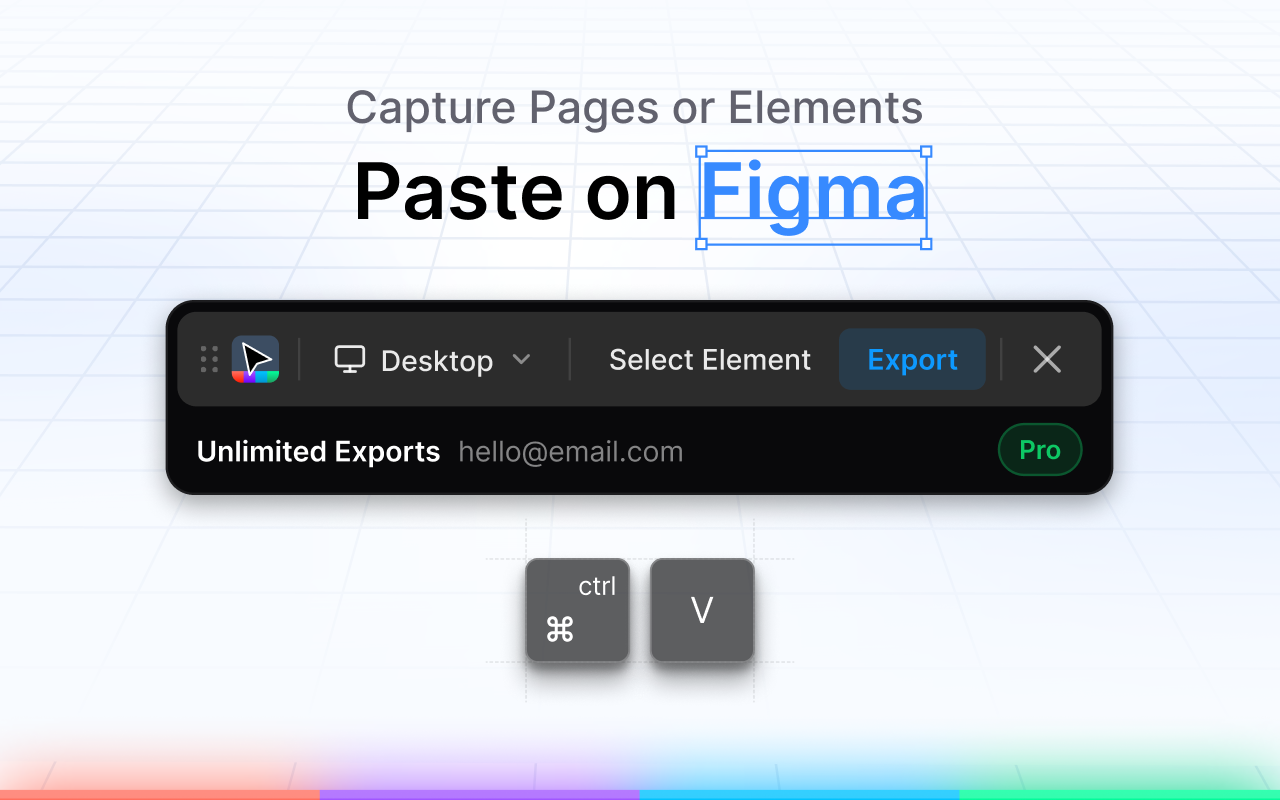
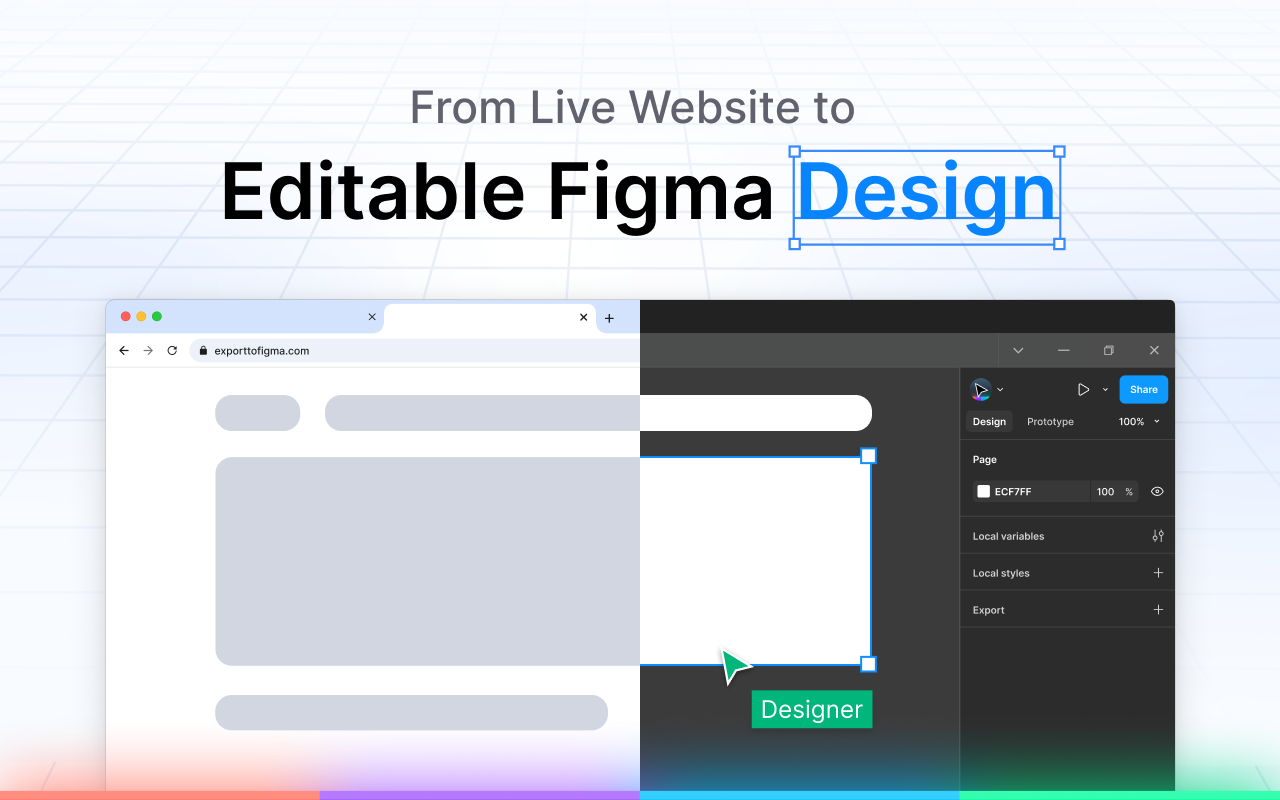
Export to Figma is a Chrome extension that lets designers and developers turn any live website into editable Figma designs. Simply open the website you want to capture, use the Figma Chrome extension to export the page or a specific section, and paste it into Figma as editable layers. It provides a quick way to bring an existing website into Figma without manually recreating its layout, text, images, and other visual elements from scratch.

Export to Figma is useful when you need to bring an existing website into your design workflow for editing, redesigning, prototyping, or reference. With export website to Figma, you can capture the website’s typography, colors, spacing, images, structure, and responsive layouts while retaining the original look and feel in an editable design.

Export to Figma offers a Free plan available forever with 10 exports per month, while the Pro plan costs $1/month at the introductory launch price – less than a coffee a month. Pro includes unlimited exports and removes usage limits, making it suitable for users who need to export websites regularly.

Key Highlights

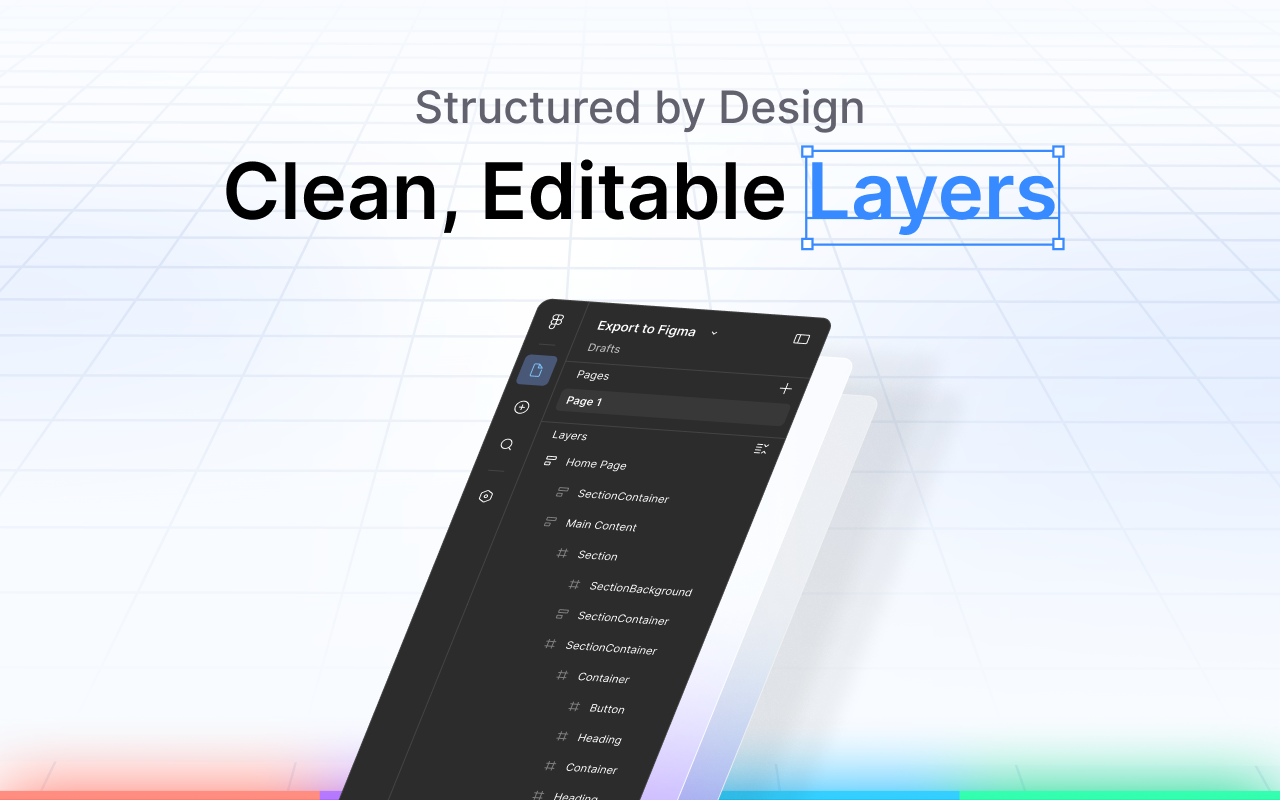
  • Editable Figma Layers: Turn live websites into clean, usable editable layers.
  • Full Page & Section Capture: Capture complete webpages or specific sections.
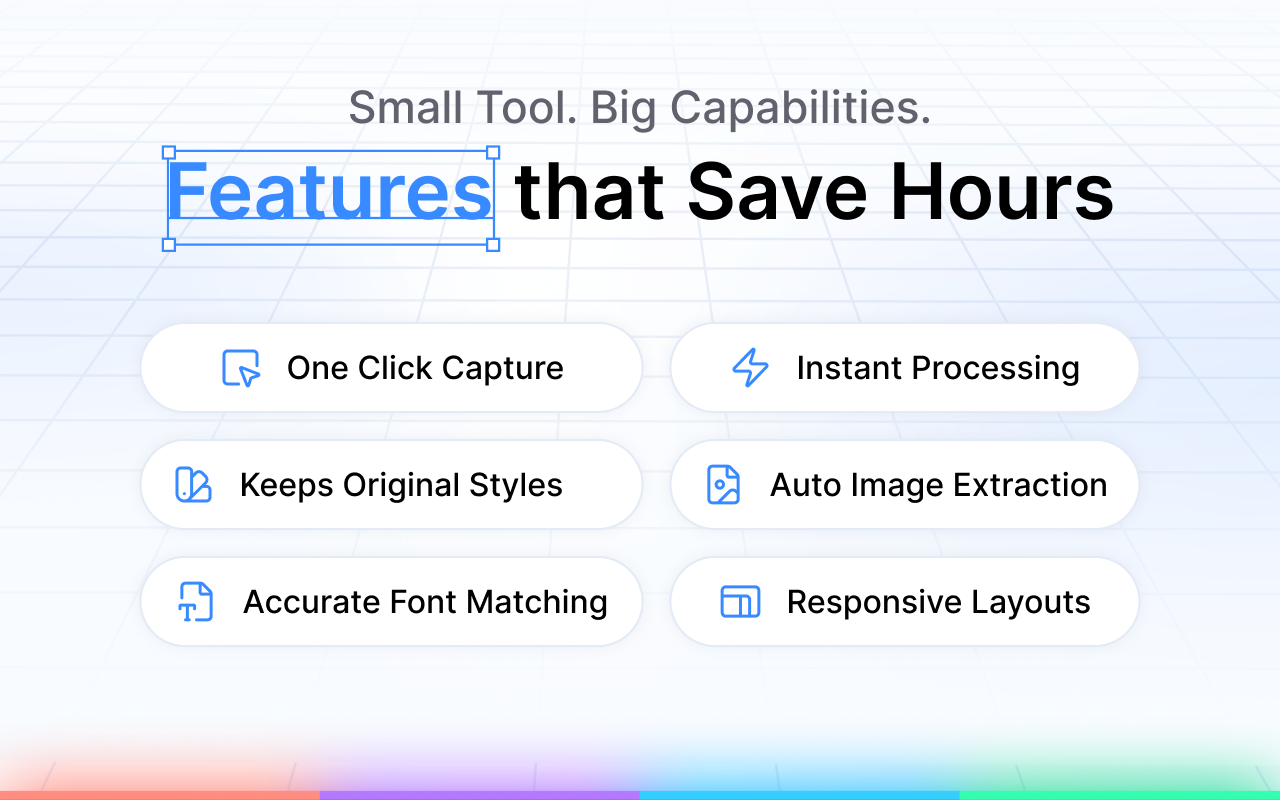
  • Design Preservation: Retain typography, colors, spacing, images, and structure.
  • Responsive Layouts: Preserve the responsive layout of the original website.
  • 10 Free Exports Monthly: Get up to 10 exports every month on the Free plan.
  • Unlimited Pro Exports: Get unlimited exports for $1/month with no usage limits.

Frequently Asked Questions (FAQs)

1. How do I recreate a website in Figma without building it from scratch?

Export to Figma lets you capture an entire webpage or select specific elements and bring them into Figma as fully editable designs. The captured designs retain organized layers, text, colors, and layout structure, so you can work with the existing design instead of rebuilding it manually.

2. Why does my website look different when I recreate it in Figma?

Export to Figma accurately converts most website elements, but some complex layouts may require minor adjustments after export. Fonts and images are generally preserved, although an alternative font may be used when the original font isn’t accessible or an asset is protected.

3. Can I turn a website screenshot into editable Figma layers?

Export to Figma is designed to capture visible website content as editable Figma designs rather than simply creating a flat screenshot. The exported result includes organized layers along with editable text, colors, and layout structure.

4. Can I capture only a specific section of a website?

Yes. You can capture an entire webpage or select specific elements using the Select Element feature. This feature is free and does not count toward your monthly capture limit.

5. Why do website-to-Figma conversions sometimes lose fonts or design details?

Most fonts and images are captured accurately, but some may not transfer exactly if a font isn’t accessible or an asset is protected. Similarly, complex layouts may require minor adjustments after export to match the original design.