
html.to.design Alternatives: 6 Tools to Turn Websites into Figma Designs
Want to edit a website in Figma? The obvious way is to recreate it—but that can mean hours spent copying sections, matching fonts, placing images, fixing spacing, and rebuilding everything piece by piece.
That’s why website to Figma tools are so useful. But getting a website into Figma doesn’t always mean getting a clean, usable file. Some imports can lose images or backgrounds, break parts of the page, or leave you with a tangled layer structure that needs a lot of cleanup. The more complex the website, the more noticeable these problems can become.
html.to.design is one of the tools people use to avoid that manual work. But if you’re looking for an html.to.design alternative, the details matter: how clean the result is, how the workflow fits into your process, what it costs, and how much work you still have to do after the import.
Why Look Beyond html.to.design?
html.to.design can make website-to-Figma work much easier, but it may not be the best fit for every workflow. Here are the main things users should consider:
- The price may not fit every budget: html.to.design’s paid plans currently range from $9 to $18/month. If you only import websites occasionally, you may prefer a tool with a lower-cost or more flexible option.
- The setup involves two separate tools: The full workflow uses both a Chrome extension and a Figma plugin. That works, but users looking for a simpler setup may prefer a workflow that keeps the capture and Figma process in one place.
- Some workflows require an extra file step: html.to.design can use
.h2dfiles (html.to.design’s saved project/import files) that you move into Figma through the plugin. If you prefer a more direct capture → paste → edit workflow, having an intermediate file can feel like an extra step. - Imported files may need cleanup: A website can turn into a Figma file with lots of nested or unnecessary layers, especially when the original page is complex. That means you may need to organize and clean the file before you can comfortably start editing it.
- Complex websites can be harder to reproduce cleanly: Pages that rely heavily on CSS grids, JavaScript, or complicated structures don’t always translate perfectly into Figma. You may need to fix broken sections or adjust parts of the imported file afterward.
- Some website content may not import correctly: Users have reported cases involving missing images, backgrounds, or other pieces of page content after importing. If you’re trying to work from an accurate copy of an existing website, even small missing details can mean extra manual work.
- Usage limits can matter for frequent users: Someone importing one or two websites occasionally may not care about usage limits. But if you’re working with websites regularly, the available imports and plan restrictions become much more important when choosing between different alternatives.
6 Best html.to.design Alternatives
| Platform | Why Consider It? | Standout Feature |
|---|---|---|
| Export to Figma | Want to take a live website straight into Figma without recreating it manually? You can export full pages or specific sections and continue editing them. | Turns full webpages or selected sections into editable Figma designs. |
| html2design | Already have HTML or a website URL and want to bring it into Figma? It gives you another route without requiring a Chrome extension. | Supports HTML, uploaded files, and URLs with editable and pixel-focused import options. |
| Anima | Need more than website capture? Anima is useful when your workflow also involves moving between Figma and development. | Connects design and code workflows rather than focusing only on website capture. |
| Magicul | Working with different design or website formats and want a tool that can handle more than one type of conversion? Magicul offers a broader conversion workflow. | Combines website capture with design-file conversion capabilities. |
| CopyFig | Want to grab website interfaces and bring them into Figma without rebuilding each part manually? CopyFig focuses on making that browser workflow quicker. | Lets you capture website UI and bring it into Figma for editing. |
| PocketUI | Don’t need an entire website? You can focus on the specific UI section or component you want to reuse in Figma. | Lets you select individual website components, sections, or full pages. |
1. Export to Figma
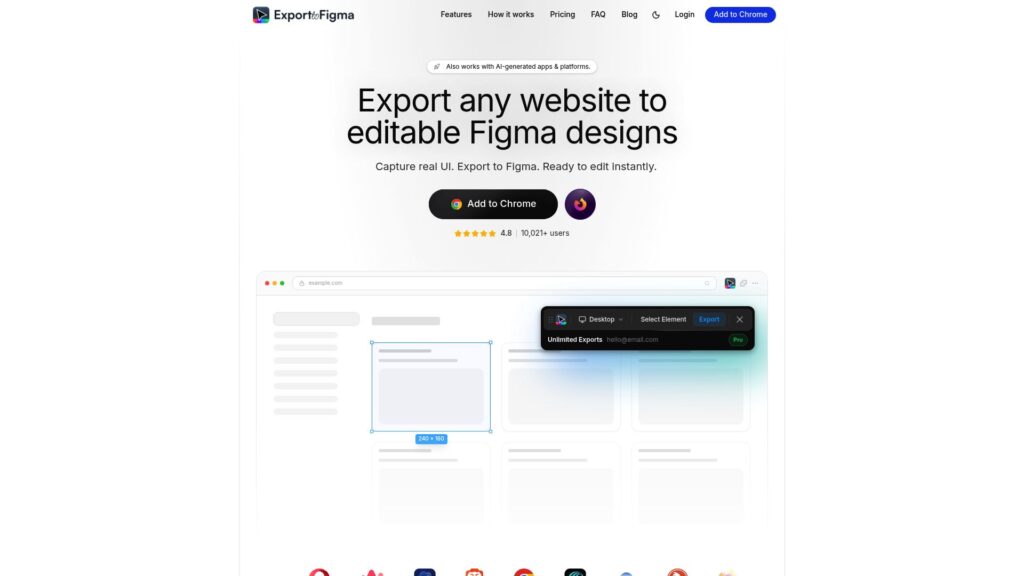
Export to Figma is a Chrome extension that lets you turn live websites into editable Figma designs. You can capture a full webpage or a specific section and bring it into Figma with editable layers, text, colors, images, spacing, and layout structure.
If you want a straightforward html.to.design alternative for bringing live websites into Figma, Export to Figma keeps the process simple: capture the website, export it, and continue working with the result in Figma.
For anyone regularly working with website to Figma workflows, this can save a lot of repetitive work. You can bring an existing page into your design file, make changes, refine sections, or use the original website as a starting point for a redesign. Read more about Export to Figma.
Pricing:
- Free: $0/month with 10 exports per month
- Pro: $1/month at the introductory launch price with unlimited exports
Pros:
- Full webpage and section capture
- Editable Figma layers
- Preserves typography, colors, spacing, images, and structure
- Works with dashboards and AI-generated websites
- Free plan with 10 exports per month
- Pro plan with unlimited exports
- Pro plan starts at $1/month at the introductory launch price
Cons:
- Requires the Chrome browser extension
- Complex layouts may need some manual adjustments
- Animations, videos, GIFs, and interactive elements aren’t captured
- Some fonts or protected assets may not transfer exactly
html.to.design vs. Export to Figma: Quick Comparison
| html.to.design | Export to Figma | |
|---|---|---|
| Getting a website into Figma | Lets you import websites into Figma through its plugin and extension workflow | Lets you capture a full webpage or a specific section and bring it into Figma as an editable design |
| How much you can export for free | Free usage comes with limits | You get 10 exports every month on the Free plan |
| If you export websites regularly | Paid plans start at $9/month | Pro starts at $1/month at the introductory launch price and gives you unlimited exports |
| Keeping the workflow simple | You may need to work between the Chrome extension and Figma plugin | You can capture the website and continue working with the result in Figma |
| Why switch? | — | If you want a straightforward html.to.design alternative with a lower-cost Pro plan and unlimited exports, Export to Figma gives you a simpler option for regular website-to-Figma work |
2. html2design
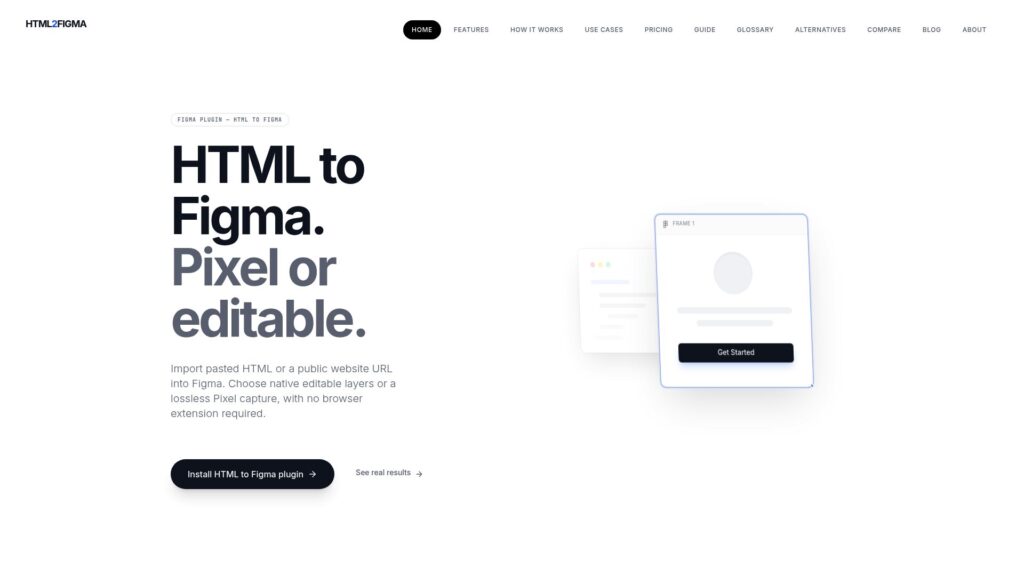
html2design lets you take an existing website and bring it into Figma without recreating the page yourself. You can enter the website URL or add the HTML, and html2design creates a Figma version that you can edit.
If you’re looking for an html.to.design alternative, html2design can help when you want to bring a website into Figma and make changes to it. You can edit the imported design or keep it as a visual reference for your own work.
Instead of copying the website section by section, you can bring the whole page into Figma and start working on it. This can be useful for redesigning a website, studying how a page is put together, or making changes to an existing design.
Pricing:
- Monthly: $12/month with 50 URL captures per day
- Yearly: $8/month, billed annually at $96/year, with 200 URL captures per day
Pros:
- Import websites directly into Figma
- Supports website URLs and HTML
- Offers both Pixel and Editable modes
- No Chrome extension required
- 50 URL captures per day on the Monthly plan
- 200 URL captures per day on the Yearly plan
Cons:
- Public URL capture requires a paid plan
- Manual HTML import can require more technical knowledge
- Complex websites may need cleanup after import
- Some website elements may not transfer perfectly
- Yearly plan requires a $96 upfront payment
html.to.design vs. html2design: Quick Comparison
| html.to.design | html2design | |
|---|---|---|
| Bringing a website into Figma | Lets you capture websites and bring them into Figma through its browser and plugin workflow | Lets you enter a website URL or add HTML and bring the page into Figma |
| If you want different ways to import | Mainly focuses on capturing websites through its extension and plugin | Gives you both URL and manual HTML import options |
| If you don't want another browser extension | Uses a Chrome extension as part of its workflow | Works directly through the Figma plugin without requiring a Chrome extension |
| If you want to see the page as it looks | Creates editable Figma designs from captured websites | Gives you both Pixel and Editable modes, so you can choose between visual accuracy and editability |
| Pricing | Paid plans start at $9/month | Paid plans start at $12/month, or $8/month when billed annually |
| Why switch? | — | If you want to import HTML directly, don't want to use a Chrome extension, or want both Pixel and Editable options, html2design gives you a different html.to.design alternative to consider |
3. Anima
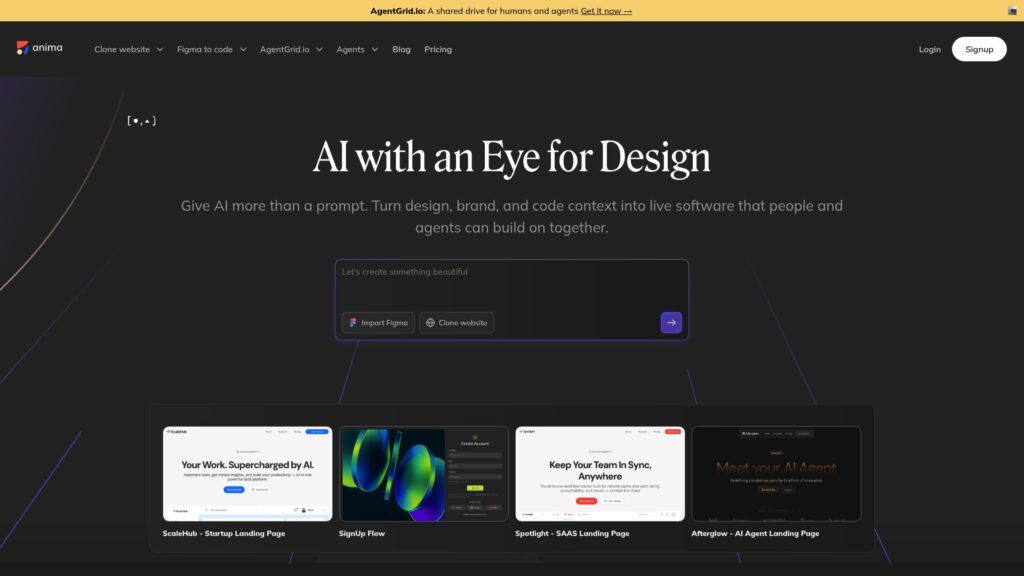
Anima helps you turn website designs into working code and move between design and development more easily. If you’re working in Figma and need to take a design further than just editing the visual layout, Anima can help connect the design with the development side of the project.
If you’re looking for an html.to.design alternative, Anima is useful when your workflow involves both design and code. Instead of focusing only on bringing a website into Figma, it gives you tools for working with the design after that.
Pricing:
- Free: ₹0/month with 5 monthly chat messages and 5 code generations
- Starter: ₹1,699/seat/month with 100 monthly chat messages and 50 monthly code generations
- Pro: ₹2,499/seat/month with 1,000 monthly chat messages and 200 monthly code generations
- Business: Starts at ₹5,799/month with 2,000 monthly chat messages and 600 monthly code generations
Pros:
- Works with Figma, Adobe XD, and Sketch
- Converts designs into HTML, CSS, React, and Vue code
- Supports responsive designs
- Provides AI-powered design and code features
- Helps designers and developers work from the same design
- Can be used directly from Figma
Cons:
- More focused on design-to-code workflows than website capture
- Some generated code may need manual adjustments
- Advanced features require a paid plan
- Can feel more complex if you only need a simple website-to-Figma tool
- Not designed specifically for capturing websites into editable Figma designs
html.to.design vs. Anima: Quick Comparison
| html.to.design | Anima | |
|---|---|---|
| What you can do with the design | Mainly helps you bring an existing website into Figma so you can edit the design | Lets you take your design further by working with code and development |
| If you want to turn designs into websites | That's not the main purpose of the tool | You can turn Figma designs into code and use them as part of your development workflow |
| If you work with developers | More focused on getting the website design into Figma | Gives designers and developers a way to work more closely from the same design |
| If you only want to import a website | Built around this specific workflow | Offers much more than website import, so you may be getting features you don't need |
| Why switch? | — | If you want an html.to.design alternative that goes beyond bringing websites into Figma and also helps connect your designs with development, Anima is worth considering |
4. Magicul
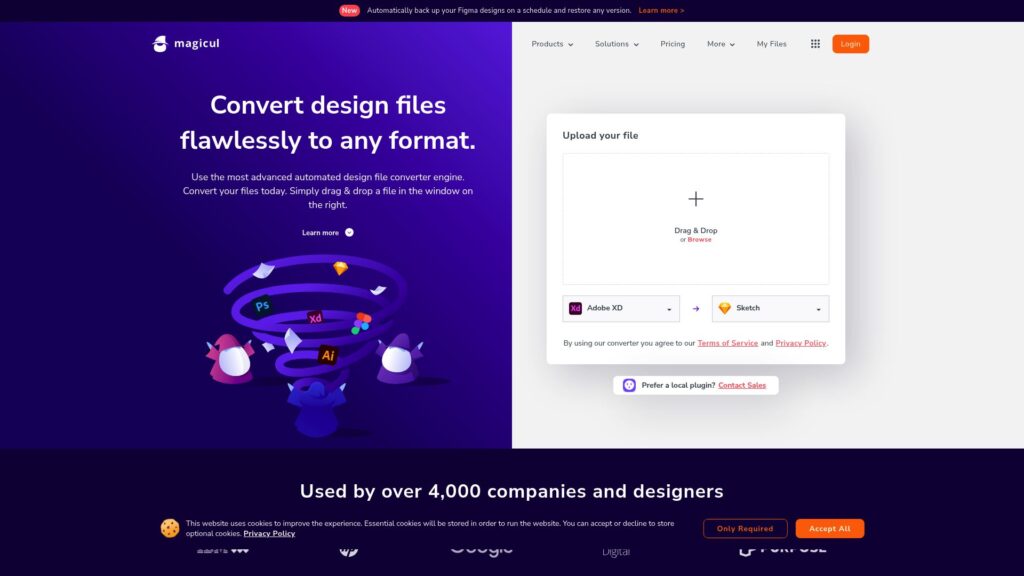
Magicul helps you bring designs from different websites and design tools into editable formats without having to rebuild everything manually. If you have an existing design that you want to move into Figma, Magicul can handle the conversion for you.
If you’re looking for an html.to.design alternative, Magicul can be useful when you work with different design formats and want more flexibility than a tool focused only on website imports.
For designers who regularly move designs between different tools, it can save time by handling much of the conversion work for you instead of making you recreate each design from scratch.
Pricing:
- For pricing, please go through their official pricing page.
Pros:
- Converts designs into editable Figma files
- Supports website and design-file conversions
- Works with multiple design formats
- Helps reduce manual recreation work
- Useful for moving designs between different tools
- Can handle larger design conversion workflows
Cons:
- More focused on design conversion than direct website capture
- Some converted designs may need cleanup
- Complex designs may not transfer perfectly
html.to.design vs. Magicul: Quick Comparison
| html.to.design | Magicul | |
|---|---|---|
| If you want to bring a website into Figma | Mainly focuses on capturing websites and turning them into editable Figma designs | Gives you a broader conversion workflow for moving designs into editable formats |
| If you work with different design tools | Mainly built around website-to-Figma workflows | Supports different design formats, making it useful when you're moving between tools |
| If you want a simple website-to-Figma workflow | Keeps the process focused on getting websites into Figma | Can involve more conversion options than you may need for a straightforward website import |
| If you need to convert existing designs | Primarily works with website captures | Useful when you already have a design file or design from another platform that needs to be converted |
| Why switch? | — | If you need more than a basic website to Figma workflow and regularly convert designs between different tools or formats, Magicul gives you another html.to.design alternative to consider |
5. CopyFig
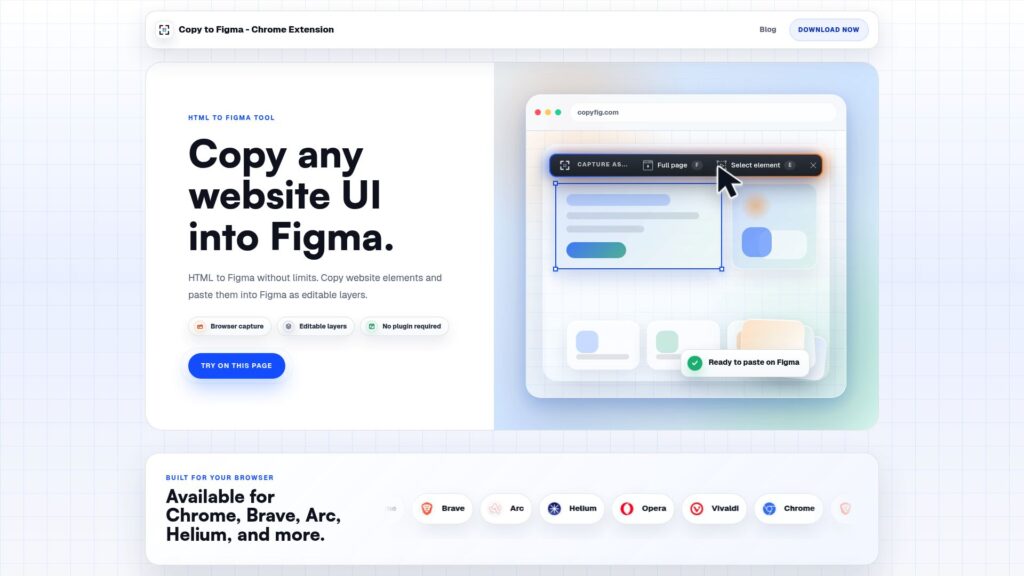
CopyFig lets you copy website designs and bring them into Figma without recreating the page manually. You can use it when you find a website or interface you want to work with and need an easier way to get it into Figma.
If you’re looking for an html.to.design alternative, CopyFig gives you another option for bringing website designs into Figma and working with them instead of starting from a blank file.
For designers who regularly take inspiration from existing websites or need to recreate parts of a web interface, it can save time by reducing the amount of manual copying involved.
Pricing:
- $7.77 one-time payment (regularly $29) for lifetime access with no recurring subscription.
Pros:
- Copies website designs into Figma
- Helps recreate website interfaces faster
- Reduces manual design work
- Useful for website inspiration and references
- Lets you work with copied designs inside Figma
Cons:
- Focused mainly on website copying
- Complex websites may need manual adjustments
- Some website elements may not copy perfectly
- Interactive website features aren’t recreated as interactive elements
- May not be suitable if you need advanced design-to-code features
html.to.design vs. CopyFig: Quick Comparison
| html.to.design | CopyFig | |
|---|---|---|
| If you want to copy a website into Figma | Lets you capture websites and bring them into Figma as editable designs | Lets you copy website designs into Figma without recreating them manually |
| If you want to save manual work | Helps reduce the time needed to rebuild an existing website | Focuses on quickly copying website interfaces so you can work with them in Figma |
| If you're working with website inspiration | Useful when you want to capture an existing website for editing or reference | Useful when you want to copy website interfaces you want to study or work from |
| If you need more than website copying | Primarily focused on website-to-Figma workflows | Mainly focused on copying website designs rather than broader design or development workflows |
| Why switch? | — | If you want a simple way to copy website interfaces into Figma and reduce manual recreation, CopyFig gives you another html.to.design alternative to consider |
6. PocketUI
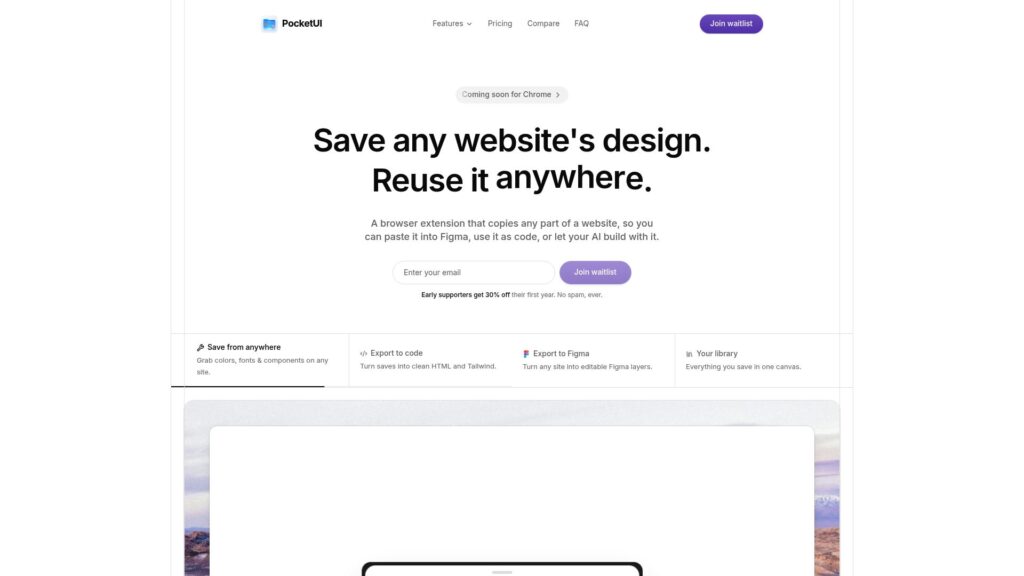
PocketUI lets you select parts of a live website and bring them into Figma as editable layers. Instead of importing an entire page, you can click on the specific section or component you want to work with.
If you’re looking for an html.to.design alternative, PocketUI can be useful when you don’t want to bring the whole website into Figma. You can select a button, card, hero section, navigation bar, or other part of the page directly from your browser.
It also goes beyond website to Figma by letting you export saved website components as HTML, Tailwind, React, and Vue code. This makes it useful if you want to reuse what you capture in both design and development workflows
Pricing:
- Free: $0/month — 3 exports/month, 25 saves/month, 3 folders, 500 MB storage.
- Pro: $15/month billed annually — unlimited exports, saves, folders, and 10 GB storage.
- Studio: $39/month billed annually — unlimited exports, saves, folders, and 50 GB storage.
Pros:
- Select individual website components or sections
- Exports editable Figma layers
- No Figma plugin required
- Works with Chrome and other Chromium-based browsers
- Exports to HTML, Tailwind, React, and Vue
- Preserves colors, fonts, SVGs, and website structure
Cons:
- Full-page export is limited to the Studio plan
- Primarily works through a browser extension
- May be more than you need for simple website-to-Figma imports
- Firefox support is not currently available
html.to.design vs. PocketUI: Quick Comparison
| html.to.design | PocketUI | |
|---|---|---|
| If you want to bring a website into Figma | Lets you capture websites and bring them into Figma as editable designs | Lets you capture website sections and export them to Figma |
| If you only need specific website sections | You can capture websites through its browser workflow | Lets you select individual elements or sections instead of capturing the whole page |
| If you want more export options | Mainly focused on bringing websites into Figma | Also exports to HTML, Tailwind, React, Vue, and other formats |
| If you want unlimited exports | Usage depends on your plan | Pro and Studio plans include unlimited exports |
| Why switch? | — | If you want an html.to.design alternative that lets you capture specific website components and export them to Figma or code, PocketUI gives you more export options |
Frequently Asked Questions (FAQs)
1. Why don't some website elements import correctly into Figma?
Website-to-Figma tools recreate a website inside Figma, but not every part of a live website can be transferred perfectly. Complex layouts, custom fonts, animations, interactive elements, images, and certain background effects may require some manual cleanup after import. Tools such as Export to Figma, html2design, Anima, Magicul, CopyFig, and PocketUI can reduce the amount of work involved, but the final result can still depend on how the original website is built.
2. Do I need a Chrome extension to convert a website to Figma?
Not necessarily. Export to Figma and CopyFig use Chrome or Chromium-based browser extensions to capture website designs. html2design lets you import a website URL or HTML directly through its Figma plugin, so you don’t need a Chrome extension. PocketUI also uses a browser-based workflow for capturing website elements. The best option depends on whether you prefer capturing a live website from your browser or importing a URL or HTML directly.
3. What if I only want to import one section of a website into Figma?
You don’t always have to import the entire website. Export to Figma lets you capture a specific section, while CopyFig can capture individual website elements. PocketUI is also designed around selecting specific components or sections, making it useful when you only need a particular part of a page rather than the entire website.
4. Is a monthly subscription worth it if I only convert websites occasionally?
If you only convert websites occasionally, a monthly subscription may not be necessary. CopyFig uses a one-time payment with lifetime access, while Export to Figma has a free plan with limited monthly exports. html2design also offers a free option for manual HTML imports. If you’re considering an html.to.design alternative, compare the pricing and usage limits based on how often you expect to use the tool.
5. What if I want to import HTML directly instead of capturing a live website?
html2design supports both website URLs and manual HTML imports, making it useful when you already have the HTML and don’t want to capture the live website. If you’re looking for an html.to.design alternative, it gives you another way to bring existing website code into Figma and continue editing the resulting design.
6. What if I need to use the design for both Figma and development?
If you need both design and development workflows, Anima is built around connecting Figma with code and supports HTML, CSS, React, and Vue. PocketUI also offers exports to HTML, Tailwind, React, and Vue. If you’re considering an html.to.design alternative that can take your design beyond Figma and into development, these options can be useful rather than simply creating an editable design.
Conclusion
Choosing an html.to.design alternative really comes down to how you want to bring websites into Figma and what you need to do with the result afterward.
If you want a simple browser-based workflow, Export to Figma and CopyFig can help you capture website designs directly. If you already have HTML or want more control over how a page is imported, html2design gives you another option. PocketUI can be useful when you only need specific website sections, while Anima makes more sense when your workflow also involves design and development. Magicul is worth considering if you regularly work with different design formats and conversion tasks.
Before choosing between these html.to.design competitors, think about how often you’ll use the tool, whether you need full-page or individual-section imports, how much cleanup you’re comfortable doing, and whether you need anything beyond an editable Figma design.

Harman Singh is the founder of Foundigy and a digital marketing professional building his career in SEO, content, and the technology space. He is passionate about discovering emerging products, understanding how people find them online, and creating content that makes complex digital topics easier to understand. His work combines his experience in SEO with his interest in startups, technology, and the evolving digital landscape.